Troubleshooting on macOS
이 콘텐츠는 아직 번역되지 않았습니다.
Your saves live in ~/Library/Application Support/FasterThanLight.
macOS blocked the app
Section titled “macOS blocked the app”Open System Settings → Privacy & Security, scroll to the bottom, and click Open Anyway. On older macOS versions, right-click the app and choose Open.
The game will not start after a manual install
Section titled “The game will not start after a manual install”You almost certainly skipped the signing step. Run it again:
-
Open Terminal.
-
Paste this in, then press the space bar:
Terminal window codesign -f -s - --timestamp=none --all-architectures --deep -
Drag
FTL.appfrom Finder into the Terminal window. Its full path is filled in for you, so there is nothing to type. -
Press Return.
The game crashes before loading Multiverse
Section titled “The game crashes before loading Multiverse”Make sure you are on the latest Hyperspace. The Multiverse installer is frequently behind, and this is by far the most common cause.
If you are on a laptop with both integrated and dedicated graphics, try forcing FTL onto one or the other.
If neither applies, your save file is corrupt, see below.
The game hangs while loading Multiverse
Section titled “The game hangs while loading Multiverse”It stops on the last E of the Multiverse logo, or the screen freezes while the music
keeps playing. Both mean the same thing: your save file is corrupt, see below.
Clearing a corrupt save, on Steam
Section titled “Clearing a corrupt save, on Steam”On Steam, start here. Steam Cloud is usually what corrupted the save in the first place. Turning it off and backing up the original Vanilla FTL save is the only way to prevent it from happening again.
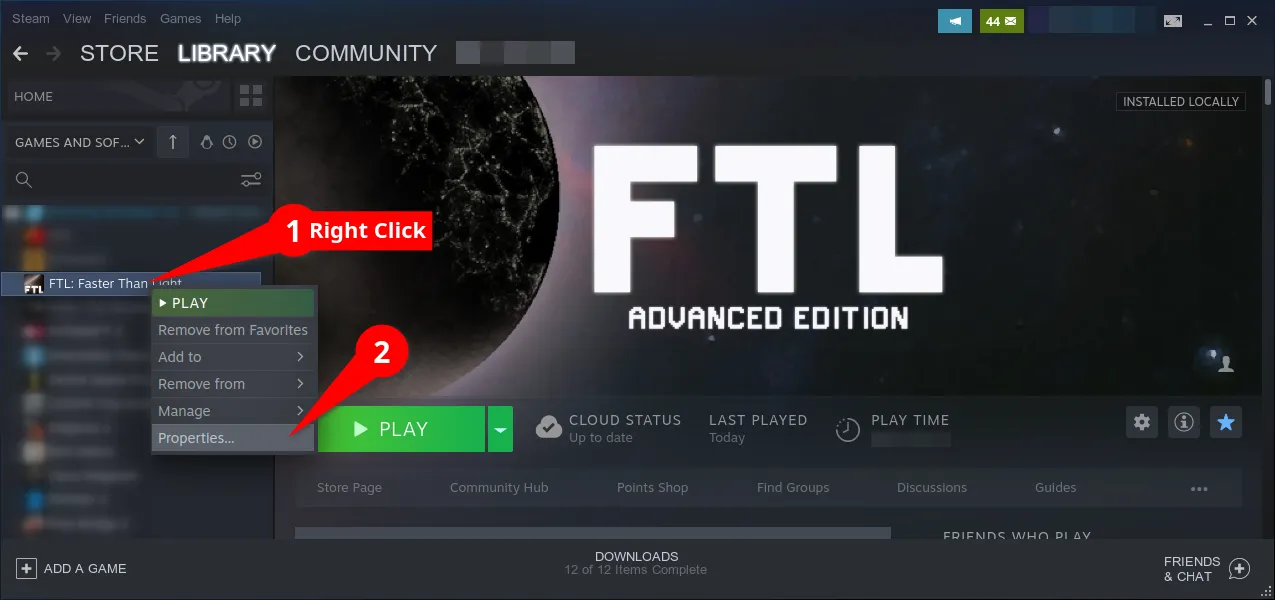
Right-click FTL: Faster Than Light in your library and open Properties.
Show me how to open Properties
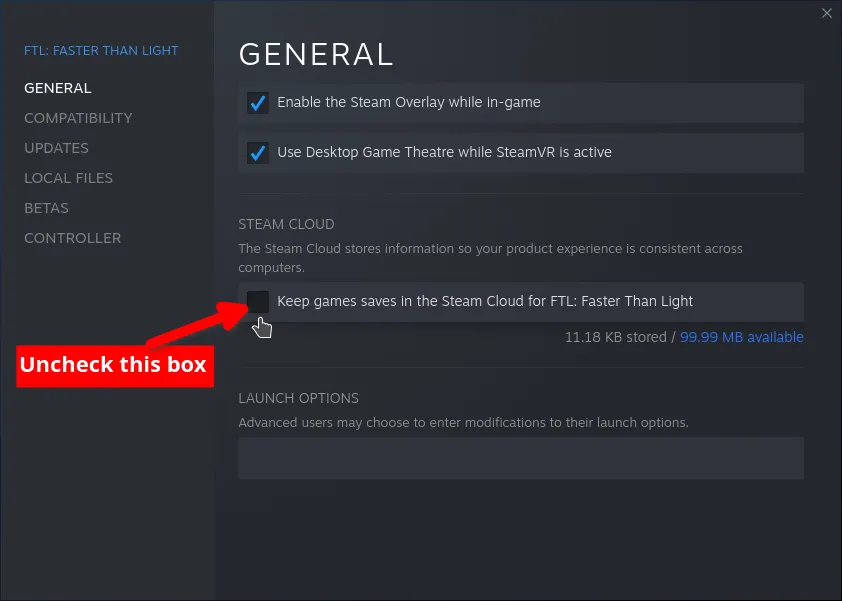
Under General, untick Keep game saves in the Steam Cloud. Turn off Steam Cloud first. It restores outdated saves with broken state, which can keep Hyperspace from launching and will undo any save fix you try later.
Show me the checkbox
Then under Updates, set automatic updates to Only update this game when I launch it.
Your saves live in ~/Library/Application Support/FasterThanLight.
Rename FasterThanLight to FasterThanLight-backup, then launch FTL. The game makes
a fresh folder, and your original saves stay in the backup if you ever want them back.
Do this once, right after turning Steam Cloud off. Cloud sync leaves behind a save that Hyperspace cannot read, which freezes the game at the end of the loading bar.
Repairing a corrupt save by hand
Section titled “Repairing a corrupt save by hand”Slower than starting clean, but it keeps your progress. On Steam, turn Steam Cloud off first, as above, or it will corrupt the save again.
-
Open your save folder and locate
hs_mv_prof.savandhs_mv_version.sav. -
Delete
hs_mv_version.sav. -
Move
hs_mv_prof.savsomewhere else. Do not delete it. -
Launch the game, let it reach the main menu, then quit.
-
Move your original
hs_mv_prof.savback, replacing the one the game just made.
Still stuck? Ask in the Hyperspace channels on the Multiverse Discord.
macOS problems also have their own channel there: #mac-support. Say which macOS version you are on, whether you used the installer or installed by hand, and where you bought FTL.