Install FTL: Hyperspace on macOS manually
이 콘텐츠는 아직 번역되지 않았습니다.
-
Steam settings
Section titled “Steam settings”Skip this if you did not buy FTL on Steam.
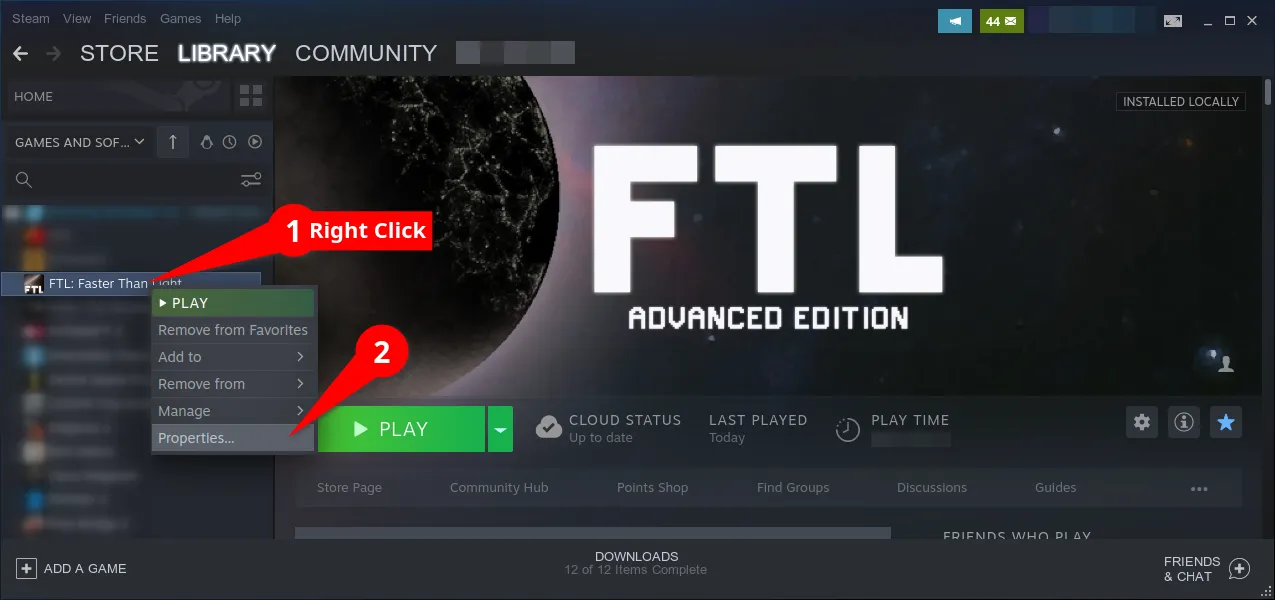
Right-click FTL: Faster Than Light in your library and open Properties.
Show me how to open Properties
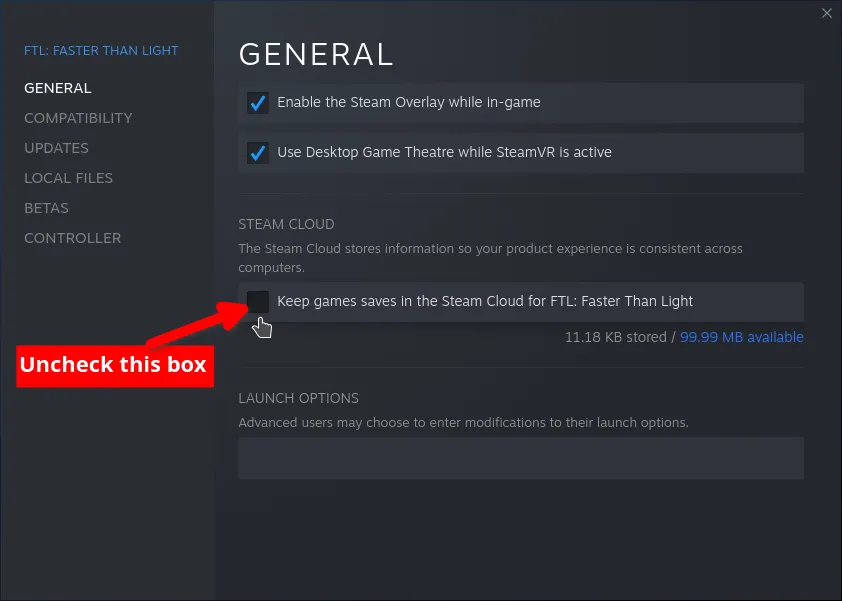
Under General, untick Keep game saves in the Steam Cloud. Turn off Steam Cloud first. It restores outdated saves with broken state, which can keep Hyperspace from launching and will undo any save fix you try later.
Show me the checkbox
Then under Updates, set automatic updates to Only update this game when I launch it.
Your saves live in
~/Library/Application Support/FasterThanLight.Rename
FasterThanLighttoFasterThanLight-backup, then launch FTL. The game makes a fresh folder, and your original saves stay in the backup if you ever want them back.Do this once, right after turning Steam Cloud off. Cloud sync leaves behind a save that Hyperspace cannot read, which freezes the game at the end of the loading bar.
-
Find your FTL folder
Section titled “Find your FTL folder”Vendor Location Steam ~/Library/Application Support/Steam/steamapps/common/FTL Faster Than Light/GOG /Applications/In Finder, press Cmd + Shift + G and paste the path. Steam users can also right-click FTL in their library and choose Manage → Browse Local Files.
-
Point the app at Hyperspace
Section titled “Point the app at Hyperspace”Right-click
FTL.app, choose Show Package Contents, open Contents, and openInfo.plistin a text editor.Change:
<key>CFBundleExecutable</key><string>FTL</string>to:
<key>CFBundleExecutable</key><string>Hyperspace.command</string>While you are in there, note
CFBundleVersion. You need it next. -
Copy the Hyperspace files
Section titled “Copy the Hyperspace files”Download
FTL.Hyperspace.x.xx.x-MacOS.zipfrom the latest release. From theMacOS/folder inside it, copy intoContents/MacOS:Hyperspace.command- exactly one dylib matching the version you just noted:
Hyperspace.1.6.13.amd64.dyliborHyperspace.1.6.12.amd64.dylib
Leave
Hyperspace.ftlwhere it is for now. You need it in step 6. -
Set up a mod manager
Section titled “Set up a mod manager”Ftlman is the recommended mod manager for FTL: Hyperspace modding. Actively maintained and supports Hyperspace updates
If FTL is currently modded (
ftl.datis bigger than ~270 MB), revert it to vanilla first, either with your mod manager or by reinstalling the game.- Download the build for your machine from the ftlman releases page.
- Extract the
ftlmanfolder anywhere you like. It does not have to live in your FTL directory. - Run
ftlman. A Steam install is detected automatically. If yours sits somewhere non-standard, or you have more than one copy and want a specific one, open Settings and set FTL data directory yourself: the folder holdingftl.datinside the game installation.
Point ftlman at
FTL.app/Contents/Resources, the folder holdingftl.dat. In Finder you can right-clickftl.dat, hold Option, and choose Copy as Pathname, then delete the trailingftl.datfrom the path. Click Scan. -
Patch Hyperspace in
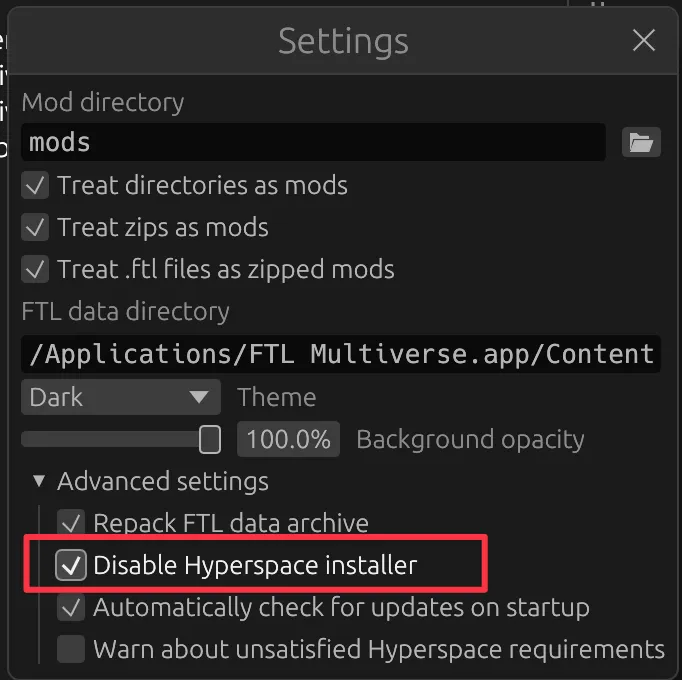
Section titled “Patch Hyperspace in”Turn off ftlman’s own Hyperspace installer, which would otherwise overwrite the files you installed by hand: in Settings, open Advanced settings and tick Disable Hyperspace installer.
Show me the setting
Put
Hyperspace.ftlfrom the ZIP into the ftlman’smodsfolder.- Put your mods in the ftlman’s
modsfolder. - Press Scan in the top right so ftlman can find them.
- Drag `Hyperspace.ftl` to the top of the list. Check the order, top to bottom:
- `Hyperspace.ftl`
- Your other mods
Tick mods you want to use. Order matters, some mods specify that they must be loaded before (e.g. Multiverse Assets). To change order simply drag the mod up or down in the list.
- Press Apply.
-
Sign the app
Section titled “Sign the app”macOS refuses to run the patched app until it is signed.
-
Open Terminal.
-
Paste this in, then press the space bar:
Terminal window codesign -f -s - --timestamp=none --all-architectures --deep -
Drag
FTL.appfrom Finder into the Terminal window. Its full path is filled in for you, so there is nothing to type. -
Press Return.
-
-
Launch
Section titled “Launch”Open
FTL.appdirectly. Do not launch it through Steam.
Adding Multiverse
Section titled “Adding Multiverse”Multiverse is the largest mod built on Hyperspace, and it installs differently from everything else.
-
Open the Multiverse Official Downloads board and pick the newest [FTL MULTIVERSE BASE MOD] thread.
-
In the first post, scroll to Manual install and download both the DATA and ASSETS files. Ignore the installer above them, that one is Windows-only and does its own thing.
Alternative way to download is to use Multiverse release thread under DOWNLOAD RAW FILES.
-
Put both
.zipfiles in your mod manager’smodsfolder.
- Press Scan in the top right so the new files show up
- If ftlman installed Hyperspace for you (you have not disabled the installer
in Settings → Advanced settings), skip this step.
If you installed Hyperspace manually, drag
Hyperspace.ftlto the top of the list. It must be above all other mods. - Drag
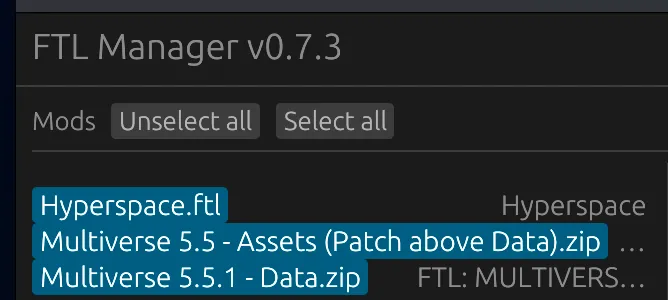
Multiverse Assets.zipaboveMultiverse Data.zip - Check the order, top to bottom:
Hyperspace.ftl(optional)Multiverse Assets.zipMultiverse Data.zip
- Select the mods: click each entry until it is highlighted blue
- Press Apply
Show me what it should look like
Uninstalling
Section titled “Uninstalling”Right-click FTL.app, choose Show Package Contents, then:
- In
Contents/Info.plist, changeHyperspace.commandback toFTL. - Delete
Hyperspace.commandandHyperspace.*.dylibfromContents/MacOS. - In
Contents/Resources, deleteftl.datand renameftl.dat.vanillatoftl.dat.